What Is a Digital Media Library?
A digital media library is a centralized, online location where you store, organize, and manage all of your visual, audio, and multimedia files. It acts as a single source of truth for everything from logos and product photos to videos, icons, audio clips, presentation files, and more.
Unlike traditional folder structures or online document storage in cloud storage tools, a digital media library is purpose-built for creative assets. It is searchable, visual, and structured to make it easier for your team to find and use the right media files without digging through endless folders or chasing down links.
Think of it as your creative team’s toolkit. Everything is neatly organized, easy to preview, and available exactly when someone needs it.
Why It’s a Must-Have for Fast-Moving Teams
When files live in a patchwork of platforms, inboxes, shared drives, and desktops, things fall through the cracks. You waste time searching. You send the wrong file. You spend extra hours updating decks and documents with the latest imagery.
A digital media library solves those problems by giving your team a single organized hub. Whether someone needs a headshot, a video clip, or a background image, it is right there, up to date, and ready to use.
Get visual with your content
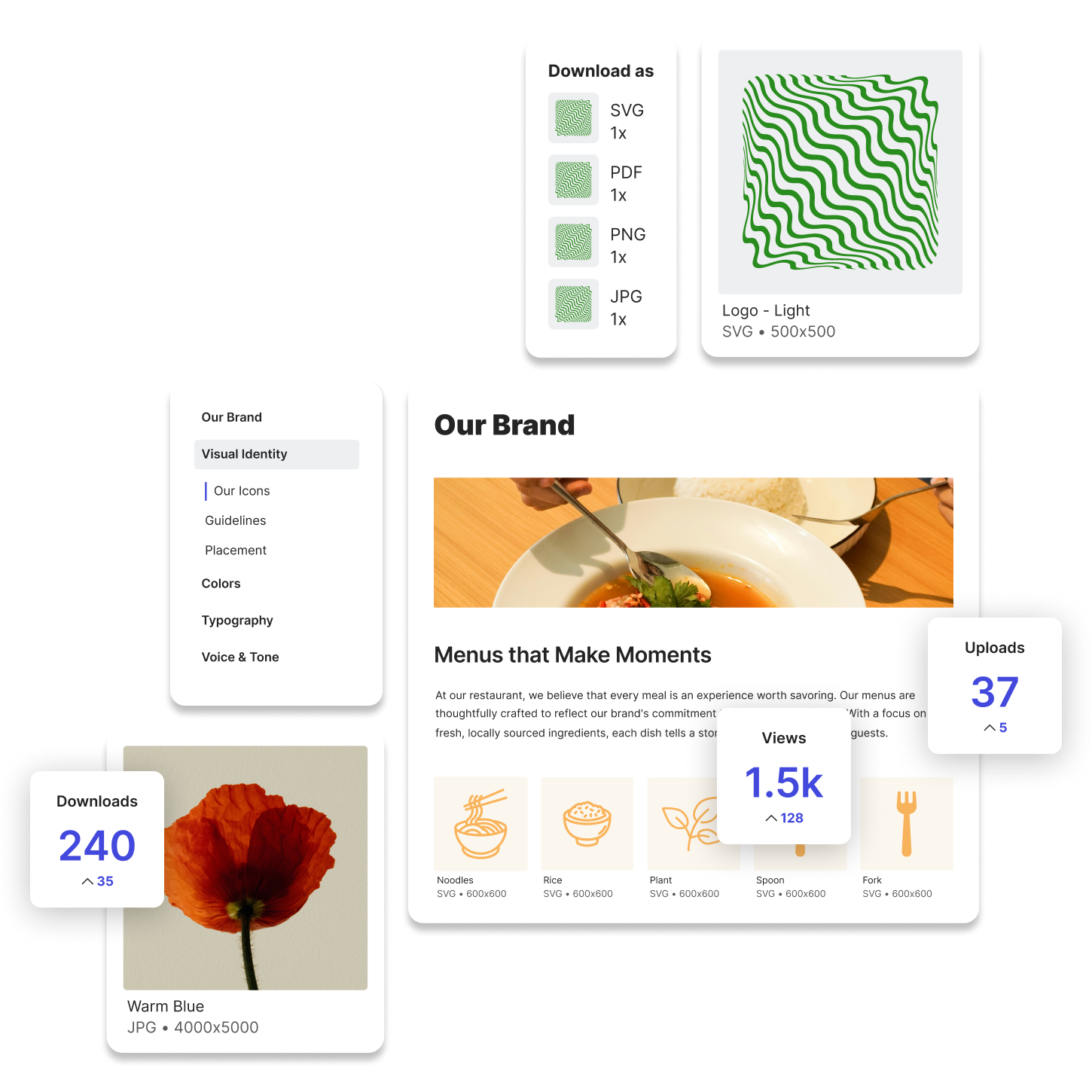
Folders labeled “final_v3” don’t mean much to someone browsing for assets. A digital media library uses visual previews, metadata, and tags to make it easier to scan, filter, and locate exactly what you're looking for.
That means faster searches and fewer mistakes, especially when multiple teams rely on the same set of files.
Scale content without losing control
As your content library grows, so do the risks of duplication, inconsistency, and mismanagement. A digital media library helps you scale effectively by making it easy to control what’s uploaded, how it’s tagged, and who has access to specific files.
You can also retire outdated assets, update media in real time, and make sure every team member is using the most current version without manual oversight.
Enable teams to work without waiting
When someone needs a resized image or a video in a different format, they often send a request to a designer. That slows everyone down. With a digital media asset library, you can provide self-service tools that allow users to download media in multiple formats and sizes.
Try Lingo for free.