Your brand isn’t a template. It’s a living, breathing experience. But until now, the Lingo Canvas treated every piece of content with the same rigid structure. Whether it was a high-res hero image or a small technical spec, every block followed the same rules.
We heard from our community of brand managers and designers that you needed more. You needed a way to guide viewers through a page, create visual hierarchy, and make your Kits feel intentional, not just a grid of thumbnails.
Today, we’re excited to introduce Canvas Customization. This is a powerful new suite of tools that puts total creative control at your fingertips, allowing you to build Lingo Kits that are as polished as the brands they represent.
Design at the Speed of Thought: The Action Menu
Control shouldn’t come at the cost of speed. We’ve introduced the Action Menu to make customizing your Canvas feel like second nature.
Simply select any content block and right-click (or use the overflow menu). You’ll find a sleek Display Panel for quick-access toggles, and a searchable action list. Instead of hunting through nested menus, just start typing "size," "align," or "make bigger" for example to jump straight to the setting you need.
What’s New: Your Creative Toolkit
We’ve added several new levers you can pull to transform your Canvas from a basic document into a bespoke brand experience.
Flexible Image Layouts
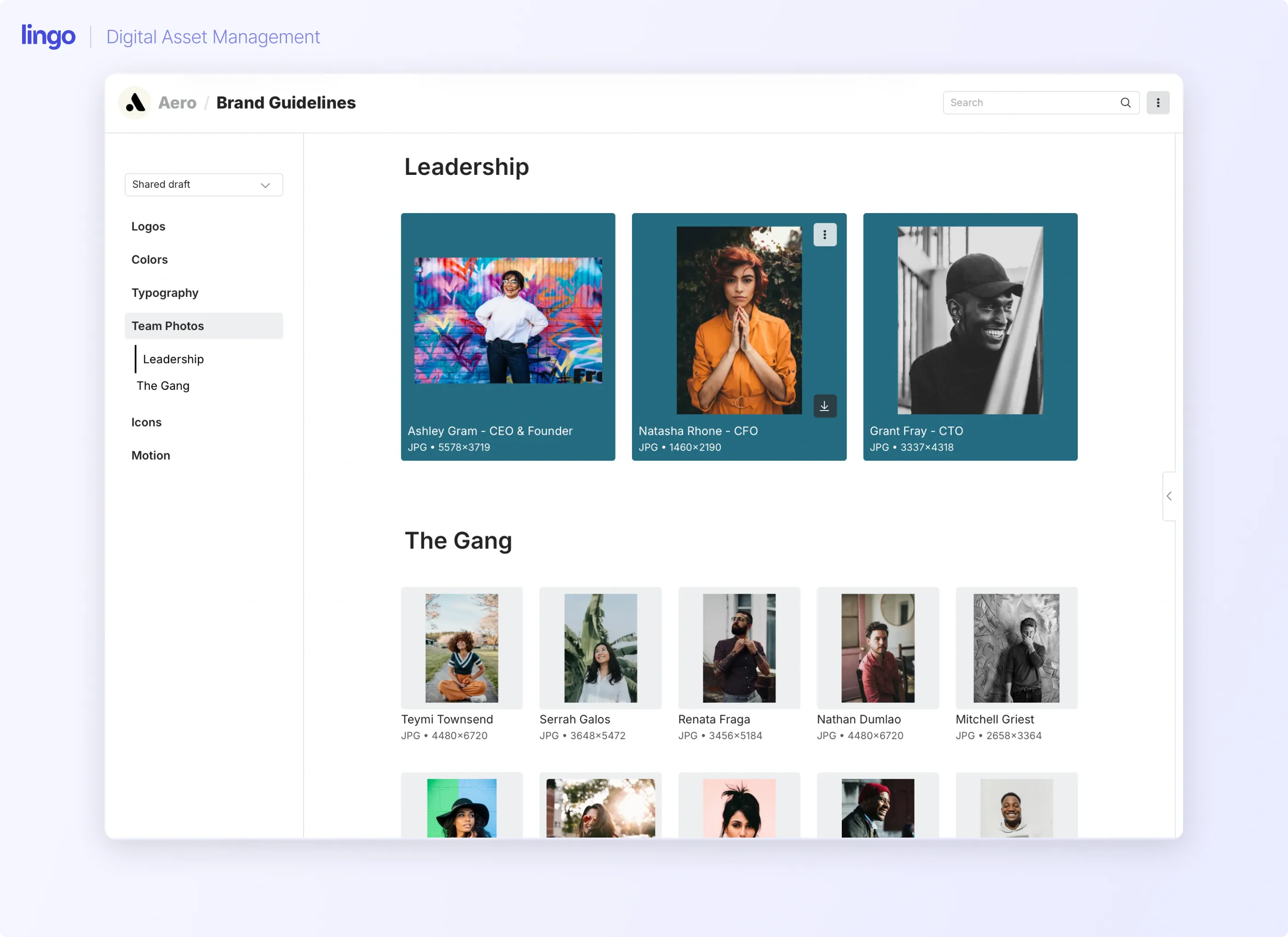
Break away from the standard grid. You can now align images to the left, top, or right within their blocks. This allows you to pair visuals with descriptive text side-by-side, which is perfect for creating a magazine-style feel.
Dynamic Sizing
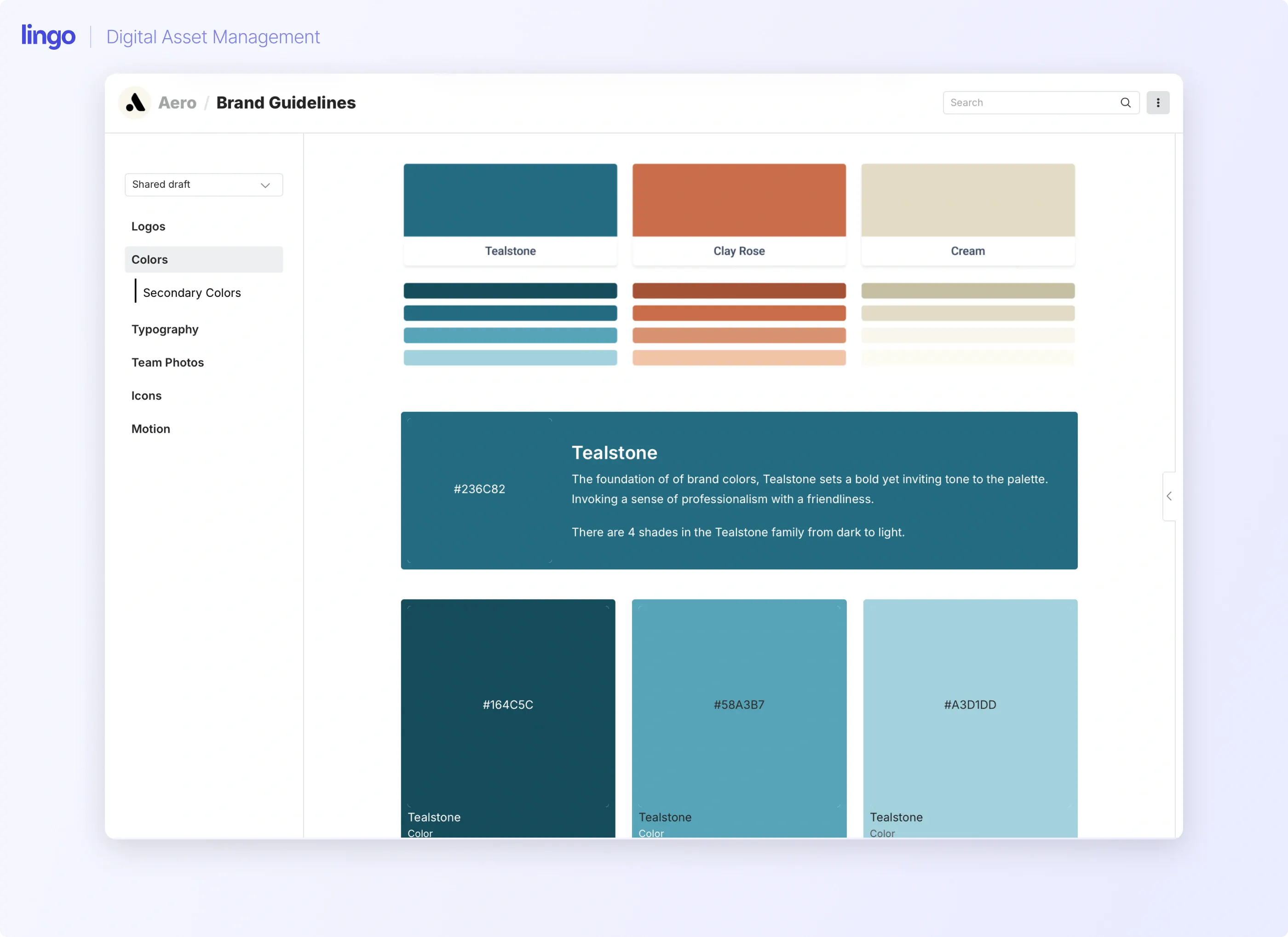
Not all assets are created equal. Use the new sizing slider to scale content from small 6-across thumbnails to full-width hero moments. Best of all, different sizes can now live on the same row, giving you total control over the flow of the page.
Card & Preview Backgrounds
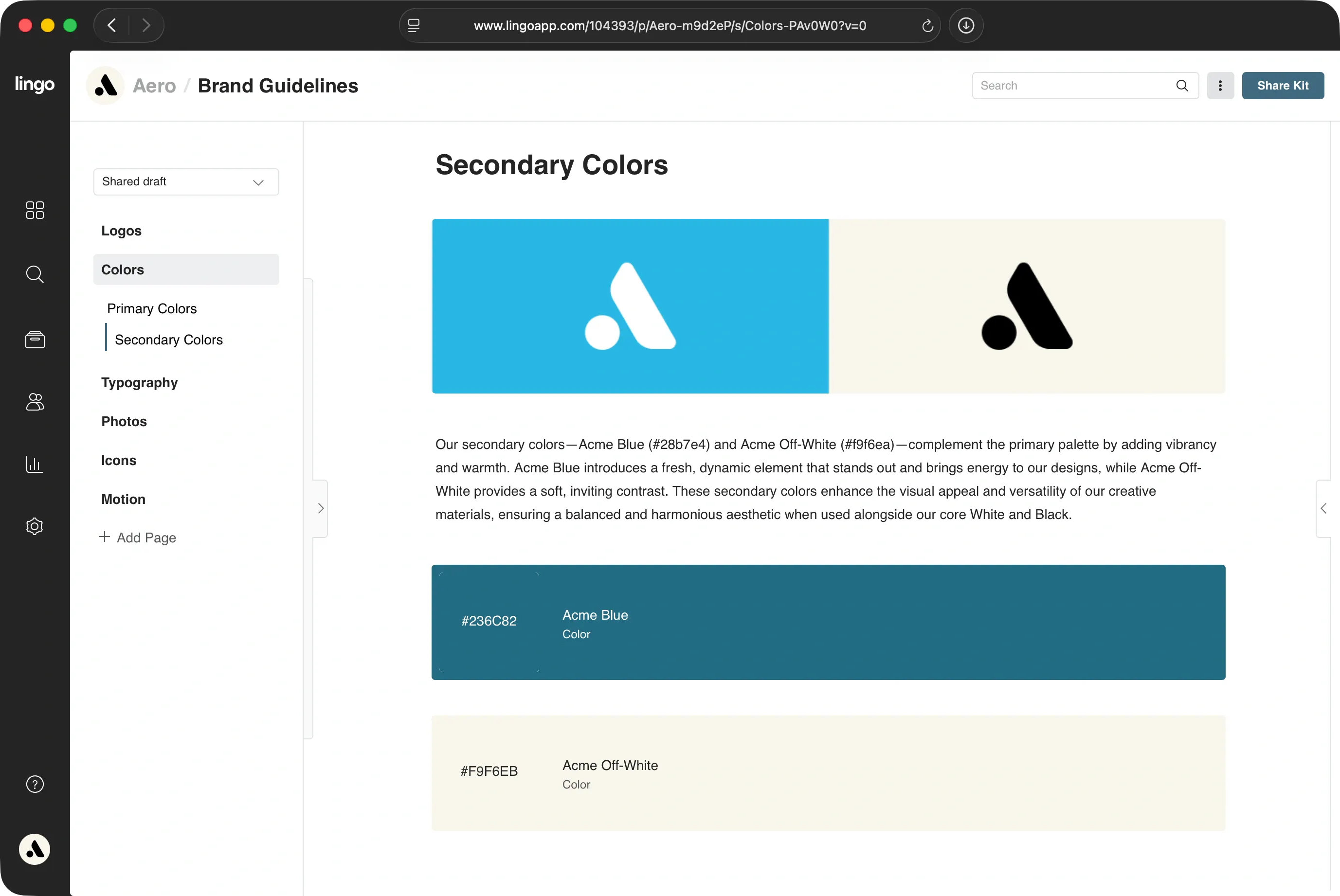
Draw attention where it matters. You can now change the background color palette of the entire content card to highlight a specific section (such as a "Warning" or "Success" state). You can also customize the Preview Background behind the asset itself, which is essential for making white logos pop or matching a specific brand palette.
Contextual Captions
Add a layer of story to your assets. Captions now stay attached to your asset blocks even when you move them. They support rich text formatting (via Markdown), so you can include bold headers, links, and lists to provide clear instructions to your team.
Selective Downloads
Sometimes you want to show, but not share. You can now toggle "Allow Downloads" for individual assets. This is perfect for including decorative elements or "work-in-progress" previews that shouldn't be distributed yet.
Motion Autoplay
Bring your Canvas to life. You can now set GIFs, videos, and Lottie files to autoplay, making your Kit feel dynamic and energetic the moment a stakeholder opens it.