Need more than 50 users? Let’s talk
Get Lingo app Remind Me to DownloadYes, you need an account to access your assets and the assets that have been shared with you.
You'll need the macOS app to add content into Lingo, however you can access that content from both the macOS app and the webapp. The macOS app does have features that you won’t find on the web like native drag & drop and it is the best way of using all content in Lingo.
Lingo uses the clipboard and standard file formats such as PNG and PDF to send content. It works with a vast number of applications including Sketch, Photoshop, Illustrator, Affinity Designer and Keynote.
You can copy and paste layers and layer groups from Sketch directly into Lingo. These assets will be added in as PDF or PNG depending on your preferences. Lingo does not store Sketch files (.sketch).
You can copy and paste layers and layer groups from Photoshop or Illustrator directly into Lingo. These assets will be added in as PDF or PNG depending on your preferences. Lingo does not store Photoshop or Illustrator files (.psd or .ai).
Assets are the individual pieces of content added to Lingo. Assets can be of 2 types: files (JPEG, PNG, GIF, TIFF, SVG, EPS, and PDF) or color (HEX, RGB, and HSB).
Kits are collections of assets that can be shared with anyone (i.e. Brand Assets, UI Components, etc.).
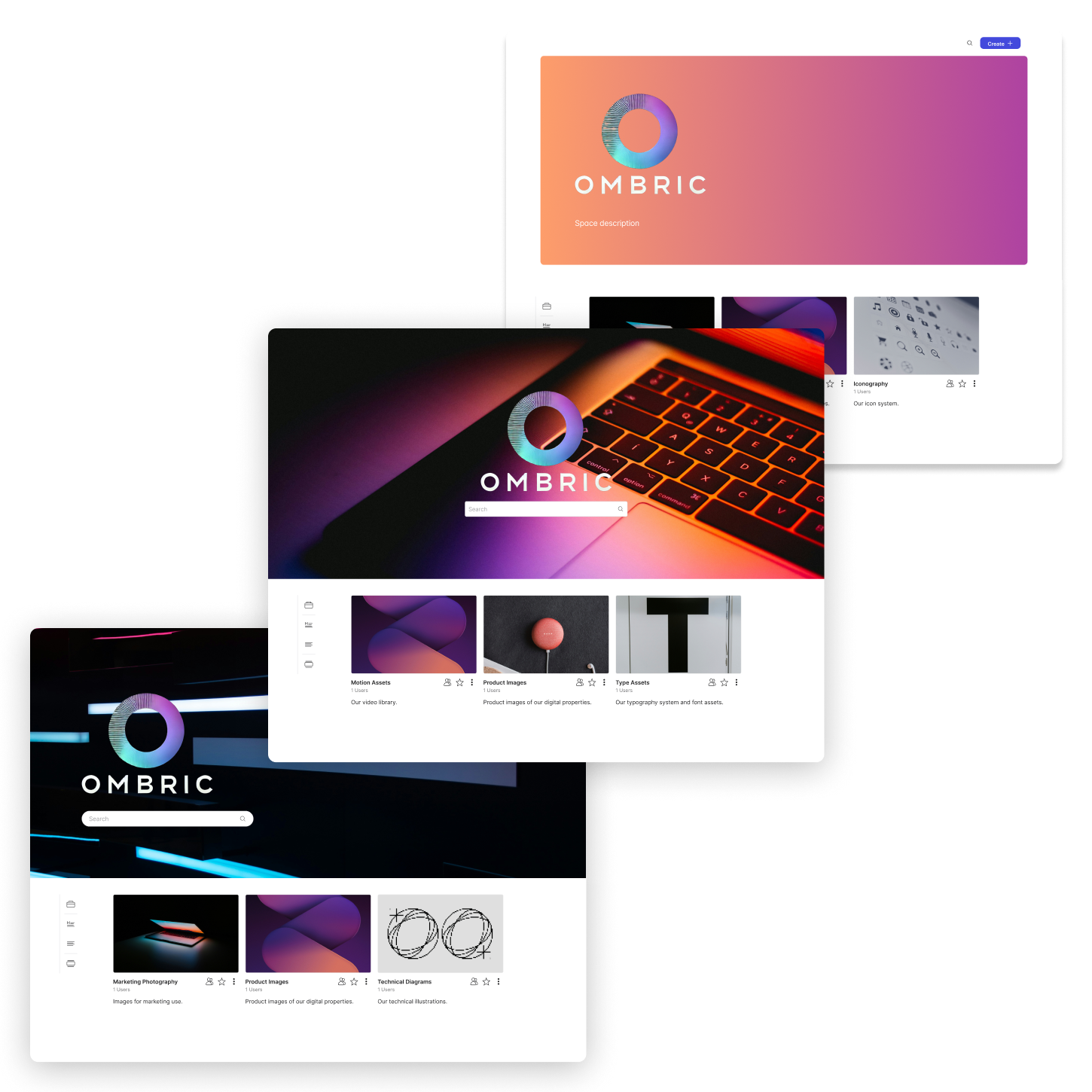
Spaces are where kits/assets exist. Spaces are limited to 100 assets on the free plan and unlimited (up to 100 GB) on the premium plans. Spaces are usually named after your organization (i.e. The Galactic Empire, Rebel Alliance, etc.).
Lingo supports PNG, GIF, JPEG and TIFF file types for raster content and SVG, EPS and PDF file types for vector content.
Lingo supports HEX, RGB, and HSB color models.
No. We recommend converting camera RAW files to JPEG before importing them into Lingo.
Assets added to Lingo for macOS are stored on the application support folder of the operating system. Assets are always uploaded to our secure servers so they can be shared with the people you want to collaborate with and accessed via the webapp.
Yes, because assets are stored locally on your computer they are available even when you don’t have an internet connection.
Lingo transfers assets to and from its servers using SSL with TLS v1.2 and forward secrecy. Assets are stored on Lingo’s servers using AES-256 encryption. We recommend enabling Apple's FileVault if you require assets to be encrypted locally on your computer. Lingo versions 1.0 and 1.0.1 transfer files using SSL with TLS v1.1 or later.
The assets you’re trying to add to Lingo might not be supported for 2 reasons, either they exceed the 20 MB per asset limit or they are not a supported file type.
If you need more than a 100 GB please contact us at: info@lingoapp.com
You can use Lingo for free if you have 100 assets or less inside Lingo.
If you have more than 100 assets in Lingo you have to pay for Lingo. How much you have to pay is based on how many people you have joined to your space.
Yes, you can upgrade your plan at any time.
Yes, you can cancel your plan at any time.
Yes, you can downgrade your plan at any time, however if you have more people joined to your space then a lower tier allows, you will need to remove people from your space before downgrading.
Only paid plans can be paused. Plans are paused because a scheduled payment was not able to process. This is usually due to an expired credit card or a problem with your bank. Your plan will be restored when the scheduled payment is successfully processed.
When your plan is paused you can not make any changes to your Lingo except for removing people from your space and changing who the owner of the space is. You are able to use the assets in your space.
There are 2 options for adding people to Lingo. You can add them to a kit or to the entire space where they will have access to all kits.
People added to a kit can only be added as Members, and unless they are given additional access, these members will only have access to the kit they were added to. People added to a space can be added as admins or members. For the people added as members, they will have access to all kits unless they are given less access.
Admins have access to all kits on the space. They can always edit a kit's content. They can add new and existing users to kits. Lastly, they can also add new users to the space. Members have access to only the kits that were assigned by an Admin. They can only edit a kit's content if allowed by an Admin.
Only admins and owners of a space can add people to a kit. To add people to a kit from inside the macOS app, first select the kit you wish to add people to, then select the add people button in the inspector rail on the right. To add people to a kit from the web you must log in to your dashboard, then select the kit you wish to add people to, then select the add people button.
Only admins and owners of a space can add people to a space. To add people to a space from inside the macOS app, first select the overview view in the navigator on the left, then select the add people button in the inspector rail on the right. To add people to a space from the web you must log in to your dashboard, then select the people tab on the left, then select the add people button.
No, admins always have access to all kits on the space.
Yes, members can be assigned to specific kits. and they will only have access to those kits. If you wish to grant them access to all existing and newly created kits you can do so by enabling access to ‘All kits’ on the change role and access modal window.
Yes, admins can always edit a kit’s content.
Yes, members can edit a kit’s content, but only if they have been given permission by an admin.
The Lingo Store is the best place to get ready-to-use assets to help you kick-start your next project. Lingo Store purchases sync directly to the macOS app and can be used as any other asset in the app.